Setting Up Your New iPhone
Follow the steps while holding the iPhone. You don’t need any experience. This guide is intended for an iPhone for personal use and assumes iOS 27 (the current version is iOS 27.0.1, as of October 3, 2026). An iPhone out of the box may still have older software. If so, follow the screen and update the software after installation.
Have these ready
- Your iPhone and a suitable charging cable with charger.
- The name and password of your wifi.
- Your Apple Account and password, if you already have one.
- A reachable phone number for verification.
- Your old phone, if you want to transfer data.
- Your SIM card or the e-SIM details from your provider.
How to read the illustrations
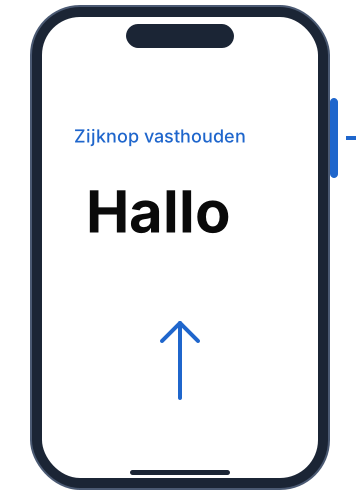
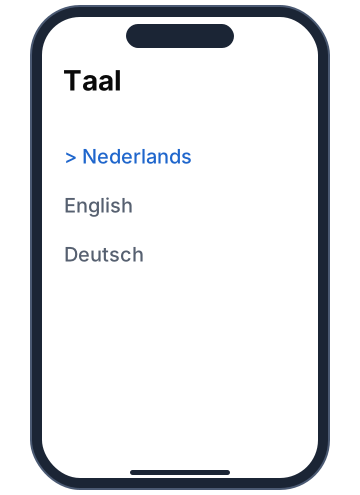
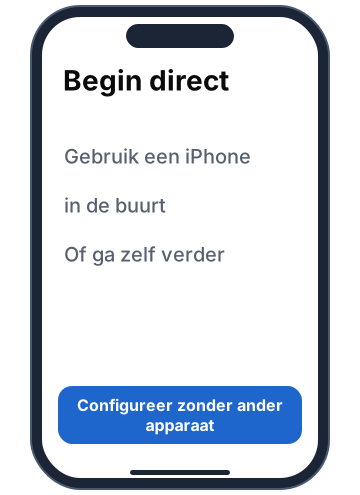
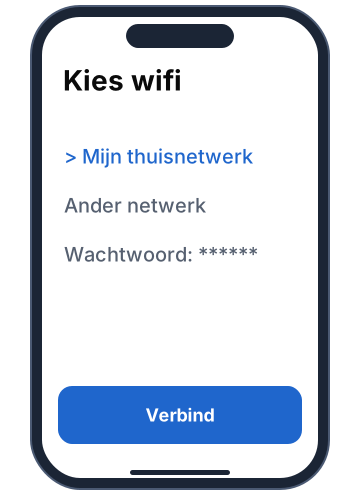
The phone drawings show what you’ll see approximately. Blue indicates a choice or action. They are illustrations, not actual screenshots.
Start by turning on
Step 1: turn on the iPhone
Press and hold the side button on the right until the Apple logo appears. Wait for the screen with Hello.
Swipe up from the bottom edge. Does your iPhone have a round home button? Then press it.
No display? Connect the iPhone to the charger and try again later.
Step 2: choose language and region
Tap Nederlands. Then choose the country or region where you live.
Does a choice for text size appear? Choose what you can read well and tap Ga door.
Tap means you briefly touch the screen with one finger.
Choose how to start
Step 3: with or without old iPhone
- Old iPhone? Place it unlocked next to the new one. Turn on wifi and Bluetooth and follow Begin direct.
- First iPhone or switching from Android? Tap Configureer zonder ander apparaat.
With Quick Start, steps can be filled in automatically. Keep both phones near each other and connected to power.
Step 4: connect to wifi
Tap the name of your own wifi network. Enter the wifi password and confirm. Wait for the iPhone to be activated. You’ll then see the next step.
Note: capital letters count in the password. Cellular activation is also possible when the screen offers it.
Set up your number and security
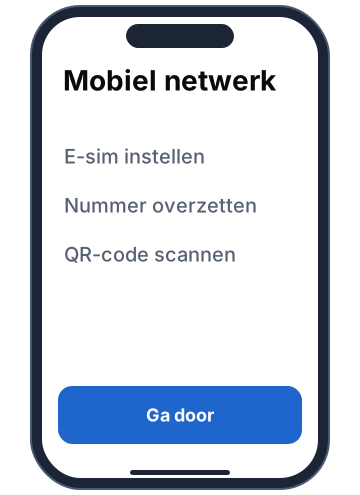
Step 5: set up your mobile number
Physical SIM? If your model has a SIM tray, open it with the SIM tool. Place the appropriate SIM in the tray and close it.
E-SIM? Follow the instructions from your provider, for example scanning a QR code or transferring your number.
This step may appear later. Later it can be done via Instellingen > Mobiel netwerk. Ask your provider for help with activation.
Step 6: choose user and security
Indicate your age group or choose who the iPhone is for, if asked.
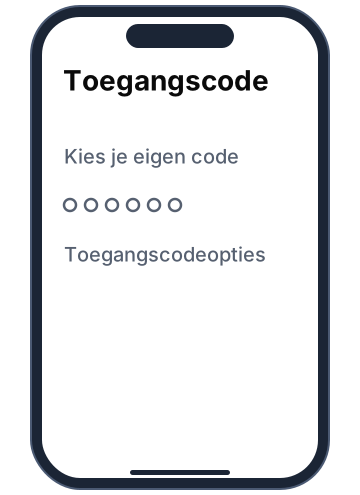
Follow the instructions for Face ID or Touch ID. Also set a passcode and enter it again.
Keep your code safe. Your passcode unlocks the phone; your Apple Account has a separate password.
Transfer data
Step 7: choose what to transfer
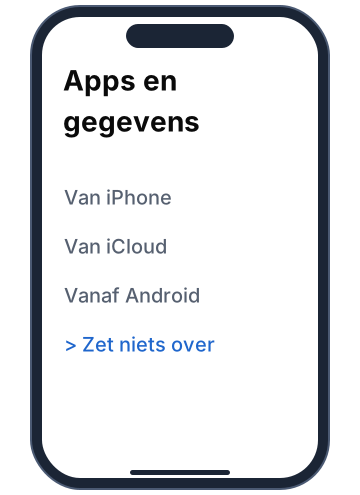
- Start completely fresh? Choose Zet niets over.
- Old iPhone? Use Begin direct or choose your existing backup.
- Android? Choose Vanaf Android and follow the instructions for Move to iOS on your Android.
Choose this route before continuing if you want to transfer old data.
Step 8: let the transfer complete
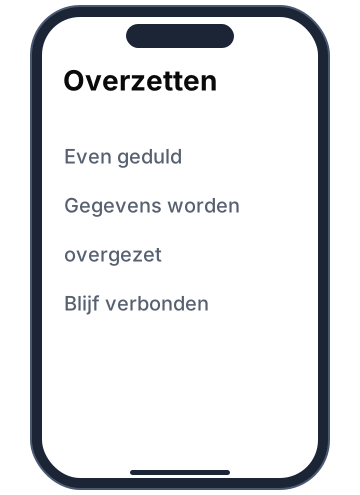
Follow the instructions for the chosen method. Keep the devices connected to power and connected.
Wait for the notification that you can continue. Apps and photos may still be downloaded afterward.
Note: only erase your old phone after you’ve verified that your important data is on the new one.
Sign in to Apple
Step 9: use your Apple Account
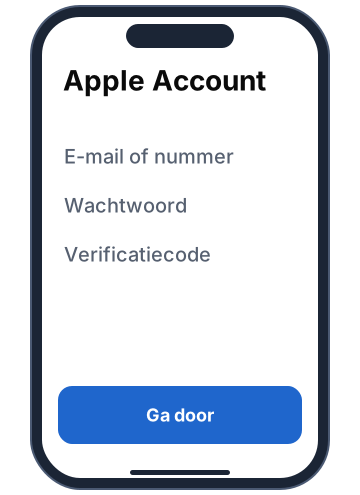
Enter the email address or phone number of your Apple Account. Enter your password.
Enter the verification code if Apple asks for it. You’ll receive it on a trusted device or phone number.
Apple ID is now called Apple Account. Your existing login credentials remain usable. Read the terms before agreeing.
Step 10: don’t have an account yet
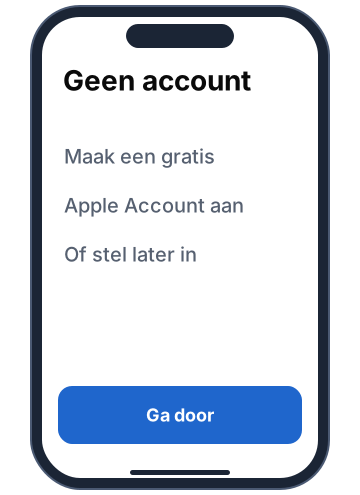
Tap Wachtwoord vergeten of geen account? Choose to create a free Apple Account.
Enter your name, date of birth and email address. Create a password and follow the verification.
No email address? You can choose a free iCloud address during creation. You can set it up later via the offered option.
Complete the setup
Step 11: choose the extra features
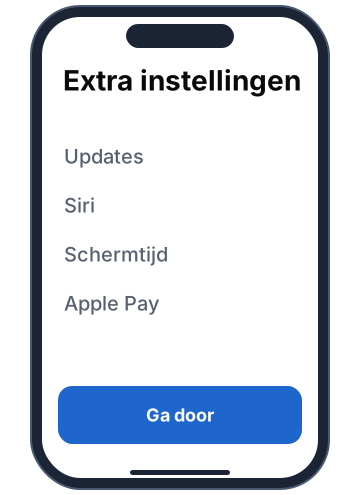
Follow the screens for updates, Siri, location, Screen Time and display. You can set up some choices later.
Apple Pay asks for a payment card. Skip it if you don’t want to do it now. Only share analytics data if you want to.
Apple Intelligence and safety features only appear when they’re available for your device and region.
Step 12: open the home screen
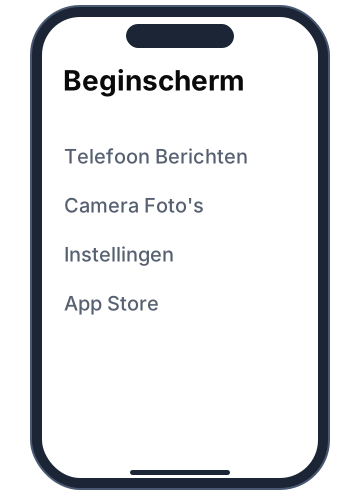
Continue until you see the home screen with apps. The basic setup is complete.
Tap an app to open it. Swipe up from the bottom edge to go back, or press the home button.
The placement and appearance of apps may vary. Give downloads time to complete.
Check if everything works
Review this quickly
- Open Safari and try a website via wifi.
- Call someone to test your mobile number.
- Lock and unlock the iPhone with your code.
- Check transferred contacts and photos.
- Check your name at the top in Settings.
- Go to Instellingen > Algemeen > Software-update and install an offered update.
If something doesn’t work
- Wifi doesn’t work: check network name and password and try again.
- Forgot password: use the recovery option at the Apple Account screen.
- No cellular coverage: have your provider check the SIM or e-SIM.
- A different screen: read the instructions on the iPhone; step order and button names may vary.
Apple instructions and resources
- iPhone instellen
- Inschakelen en configureren
- Gegevens overzetten
- Apple Account aanmaken
- Sim en e-sim
- Nieuwste iOS en updates
Based on Apple Support, accessed October 3, 2026.