Setting up your new Samsung
Follow the steps while holding the Galaxy. This guide helps you set up a new Samsung phone for personal use. It assumes One UI 9 with Android 17, the latest version as of October 3, 2026. The rollout varies by model. A Galaxy out of the box may have older software; install available updates afterward.
Get this ready
- Your Galaxy, a suitable USB-C cable and charger.
- The name and password of your wifi.
- Your Google account and possibly your Samsung account.
- An accessible number for verification codes.
- Your old phone, if you want to transfer data.
- Your SIM card or the e-SIM details from your provider.
How to read the images
The screens are simplified illustrations, not screenshots. Blue highlights a choice. The order and button names may differ by model, region and software version.
Start by turning it on
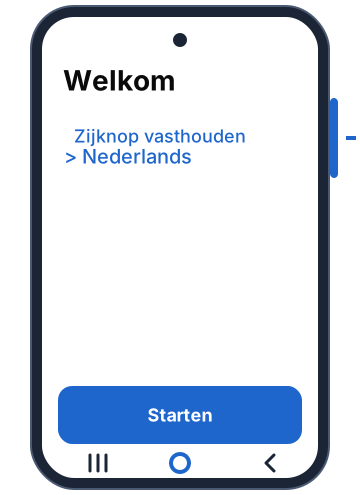
Step 1: turn on the Galaxy
Press and hold the side button on the right until the phone vibrates or the Samsung logo appears.
Wait for the welcome screen. Choose English and tap Start or the arrow.
No display? Connect the phone to the charger and try again later.
Step 2: read the agreements
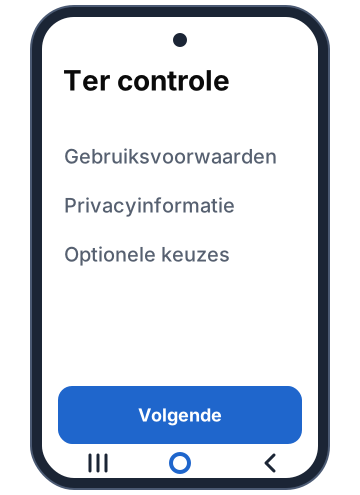
Read the terms of use. Check the required agreements to continue.
Choose whether you want to share optional data or marketing information. Then tap Next.
Tap means you briefly touch the screen with one finger. You don’t have to turn on all optional choices.
Choose how to start
Step 3: with or without old phone
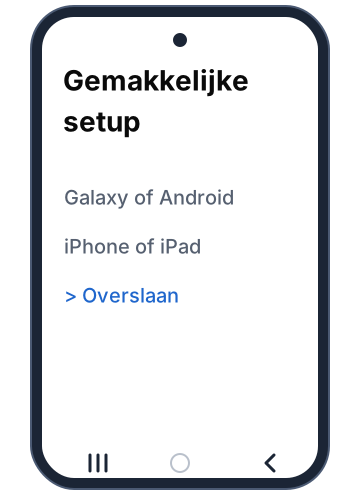
Choose Galaxy or Android device if you’re switching from one. Choose iPhone or iPad if you’re coming from Apple.
Want to start completely fresh? Choose the option to skip this or set up manually.
Do you see a QR code? Follow the instructions on both phones. Copying data can also be done later with Smart Switch.
Step 4: connect to wifi
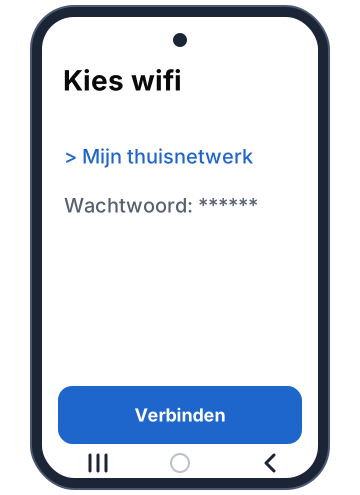
Tap the name of your own wifi network. Enter the wifi password and tap Connect.
Let the phone complete checks or offered updates. Then follow the next screen.
Note: uppercase letters count in the password. Preferably use your own wifi for setup.
Set up your phone number
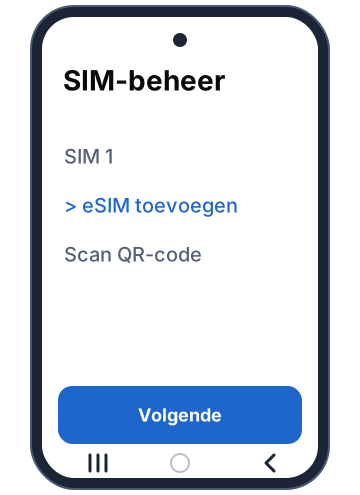
Step 5: use your SIM or e-SIM
Physical SIM? Open the SIM tray with the SIM tool in the hole of the tray. Place the appropriate SIM in it and close the tray.
E-SIM? Follow your provider’s activation, for example by scanning a QR code.
E-SIM only works on supported models. Later it can be done via Settings > Connections > SIM management > Add eSIM.
Step 6: log in to Google
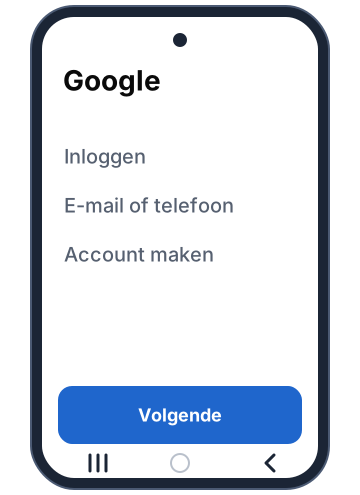
Use your existing Google account. A Gmail address is also a Google account. Enter your password and any verification code.
Don’t have an account yet? Choose Create account and follow the steps. Setting up later is possible via Skip if that option appears.
Your Google account gives access to the Play Store. When switching, use your existing account to find your data.
Transfer your data
Step 7: copy with Smart Switch
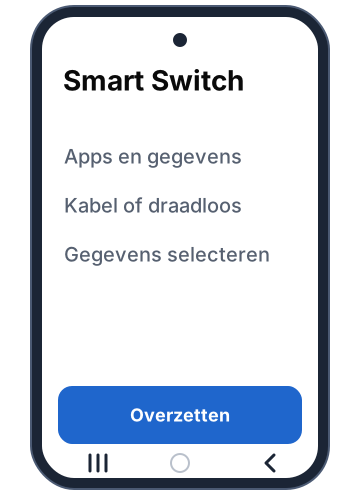
Choose to copy apps and data. Follow Smart Switch and grant the necessary access for the transfer.
Choose your old device and an offered connection: cable or wireless. Select what you want to transfer.
A cable may be needed for certain data. Starting fresh? Choose Don’t copy or Skip.
Step 8: wait and check
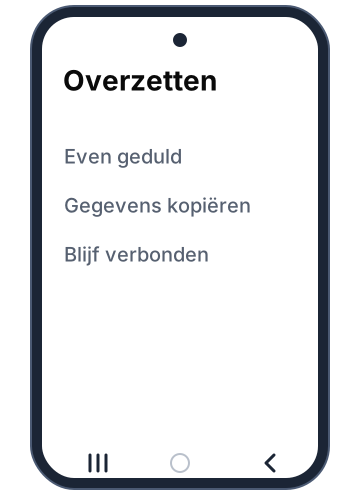
Keep the phones close and sufficiently charged. Follow the progress and wait until you can continue.
Then check your contacts and photos. For some apps you need to log in again; not everything is transferred.
Note: WhatsApp and banking apps may ask for additional steps. Only erase your old phone after you’ve checked important data.
Secure the phone
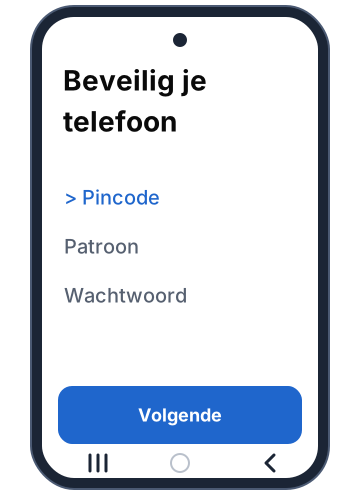
Step 9: choose services and a PIN code
Read the choices for Google services, such as backup and location. Turn on what you want to use and confirm.
Choose a screen lock, for example a PIN code. Enter your chosen code again.
Your screen code is different from your Google password. Keep both safe.
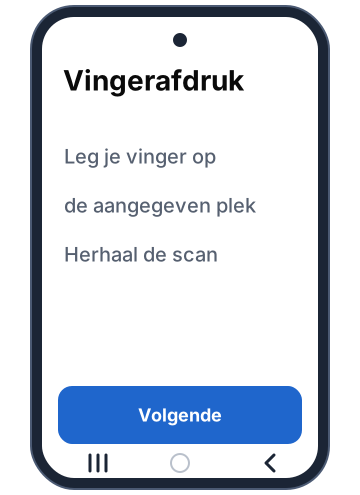
Step 10: add your fingerprint
Does your model offer a fingerprint scanner? Follow the instructions and repeatedly place your finger on the indicated spot.
Face recognition may also be offered. Choose what you want to use or set this up later.
Your PIN code remains necessary, for example after restarting. The scanner can be in the screen or in the side button.
Complete the setup
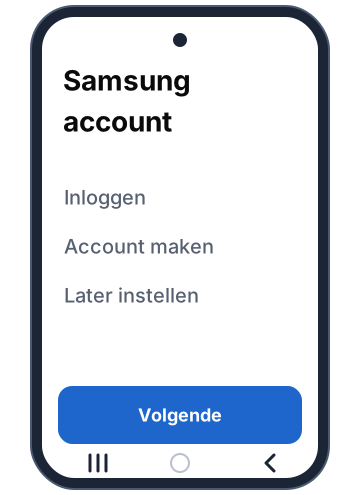
Step 11: set up Samsung and extras
Log in to your Samsung account or choose to create an account. Complete the verification.
Want to do this later? Use the offered option for set up later. Also check extra apps and Galaxy AI if they are offered.
Google and Samsung each have their own account. Available Samsung features vary by model and region.
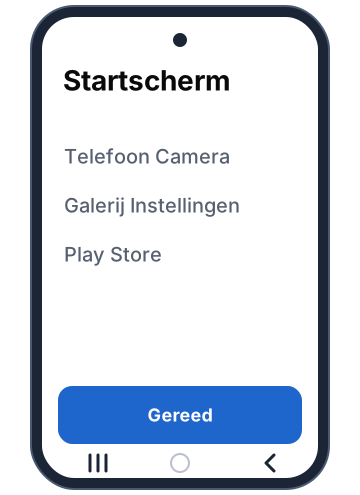
Step 12: open the home screen
Tap Complete or Done when setup is finished. You now see the home screen with apps.
Tap an app to open it. Tap the Home button at the bottom to go back. Using gestures? Swipe up from the bottom edge.
Swipe up on the home screen to see all apps. Downloads may continue for a while.
Check if everything works
Go through this briefly
- Open Samsung Internet or Chrome and test your wifi.
- Call someone to test your mobile number.
- Lock and unlock your phone with your code.
- Check transferred contacts and photos.
- Open the Play Store and check your Google account.
- Go to Settings > Software update > Download and install and check for updates.
If something doesn’t work
- Wifi doesn’t work: check the network name and password.
- Account password forgotten: use the recovery option on the login screen.
- No mobile signal: have your provider check your SIM or e-SIM.
- A different screen: follow the instructions on your Galaxy; the order may differ.
Samsung instructions and resources
- Setting up a new Galaxy
- Transferring data with Smart Switch
- Switching from iPhone
- Creating a Samsung account
- SIM and e-SIM
- Latest One UI and availability
Based on Samsung Support, consulted on October 3, 2026.